
Whitelist an Email in SmarterMail Using Trusted Senders
If you’re expecting an important email but can’t find it in your Inbox, there’s a chance it was identified as spam and delivered to your Junk Email folder. Spam filtering



When legitimate email repeatedly lands in Junk Email, it helps to know whether you should review Trusted Senders, SpamFoo, or both.
Trusted Senders identifies addresses you trust. SpamFoo analyzes messages and provides tools for reviewing filtering decisions, managing sender rules, and organizing your Inbox.
This guide explains which tool to review, how to open SpamFoo, and how to make corrections. It also covers settings that domain administrators can manage for their organization.
You do not need to complete every step to resolve one email problem. Start with the comparison table below, then follow the instructions that apply to your situation.
SpamFoo analyzes email using message content, sender information, authentication results, and machine learning. It can identify unwanted messages and organize legitimate email into four classifications:
A legitimate message under Promotions or Updates has not necessarily been marked as spam. It may simply appear under a different classification in your Inbox.
Trusted Senders is an exception list: it identifies specific email addresses or domains you trust.
SpamFoo analyzes messages and applies rules: it helps determine whether email is unwanted and how legitimate messages should be classified. It also learns from corrections made in webmail. SpamFoo feedback documentation.
Review Trusted Senders when a known sender’s legitimate messages need trusted treatment. Review SpamFoo when investigating its filtering decisions, learned corrections, or sender rules.
For instructions on trusting an address, recovering a legitimate message from Junk Email, and understanding the limits of trusted treatment, see our SmarterMail Trusted Senders guide.
We recommend starting with the problem you are trying to solve:
| Situation | Which Should You Review? |
|---|---|
| Legitimate senders email is showing up in Junk Email | Trusted Senders: Check whether the specific address is listed. Follow our Trusted Senders guide to verify the sender, add the address, and recover the message |
| A sender is already in Trusted Senders, but legitimate messages still go to Junk Email. | Both: Confirm the trusted address matches the affected sender, then review SpamFoo for relevant rules or previous spam corrections. Contact support if the cause remains unclear. |
| Unwanted messages continue reaching your Inbox. | SpamFoo: Review relevant rules and correct missed spam in webmail. Also check that the sender has not accidentally been added to Trusted Senders. |
| Same senders messages are incorrectly filtered for several employees. | SpamFoo and domain-level Trusted Senders: Have your domain administrator review shared rules and trusted entries. |
| Message is missing from both the Inbox and Junk Email folder. | Contact support first: A missing message alone does not identify which setting needs changing. |
Start with the setting that matches the problem. For a known sender repeatedly going to Junk Email, check Trusted Senders first. If the sender is already trusted, unwanted mail continues arriving, or several employees experience the same issue, review the relevant SpamFoo settings and involve your domain administrator as needed.
You do not need to add a sender to both systems automatically. Neither a trusted entry nor a SpamFoo rule guarantees delivery.
Knowing which screen and account you need will be important for this process. You will use two places during this guide:
Your account permissions also matter:
A domain is the part after the @ in an email address. For example, alex@example.com and billing@example.com belong to the same domain.
There is no desktop application to install for this guide. SmarterMail handles its integrated SpamFoo software on the server and your access is via a web browser.
If you only manage your own email, you can skip the domain-rule instructions in Step 3.
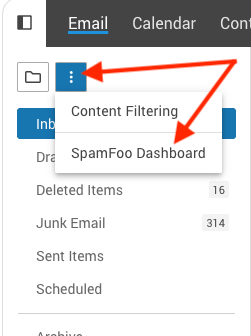
SpamFoo opens in a separate browser window and signs you in automatically.
If the menu is missing, contact Skynet Solutions Support to confirm availability and your account settings. If clicking it does not open a window, check whether your browser blocked the new window.
Continue in the SpamFoo Dashboard.
Before changing anything, establish who the change should affect.
If you are troubleshooting only your own email, use your personal mailbox view. If you administer the domain and are investigating a problem affecting several employees, use the domain administrator view offered to your account.
Domain administrators have access to their own domain; ordinary users do not receive those domain controls. If you cannot find a domain view, have support confirm your permissions. SpamFoo administrator permissions.
Use the dashboard’s activity information alongside actual examples of affected messages. A summary count alone will not explain why a particular invoice went to Junk Email.
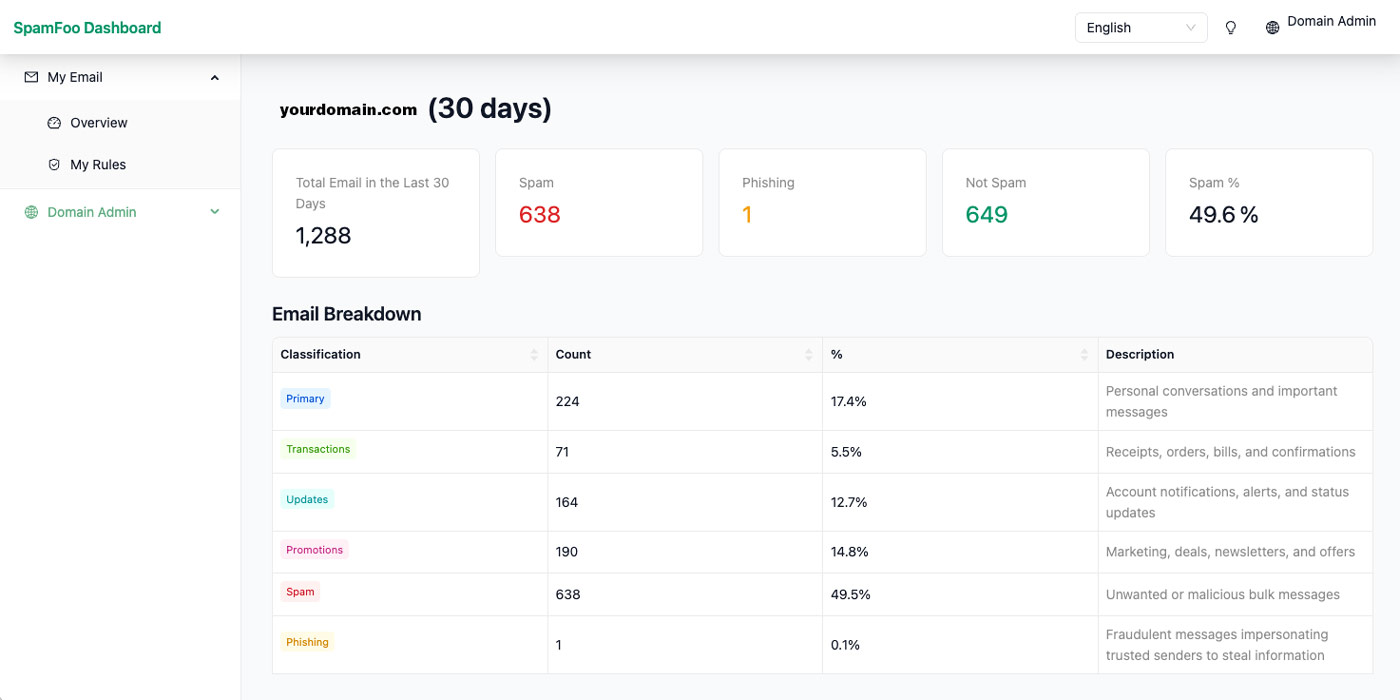
When reviewing your personal settings, My Rules includes custom and trained rules. Trained rules reflect previous corrections made in webmail. They can be deleted, but not edited. Personal SpamFoo rules.
Review relevant entries before adding another rule. If a previous correction was accidental, it may help explain the behavior you are now seeing.
Domain administrators only. Continue in the SpamFoo Dashboard.
Start by reviewing existing rules. A rule may already explain the behavior being reported.
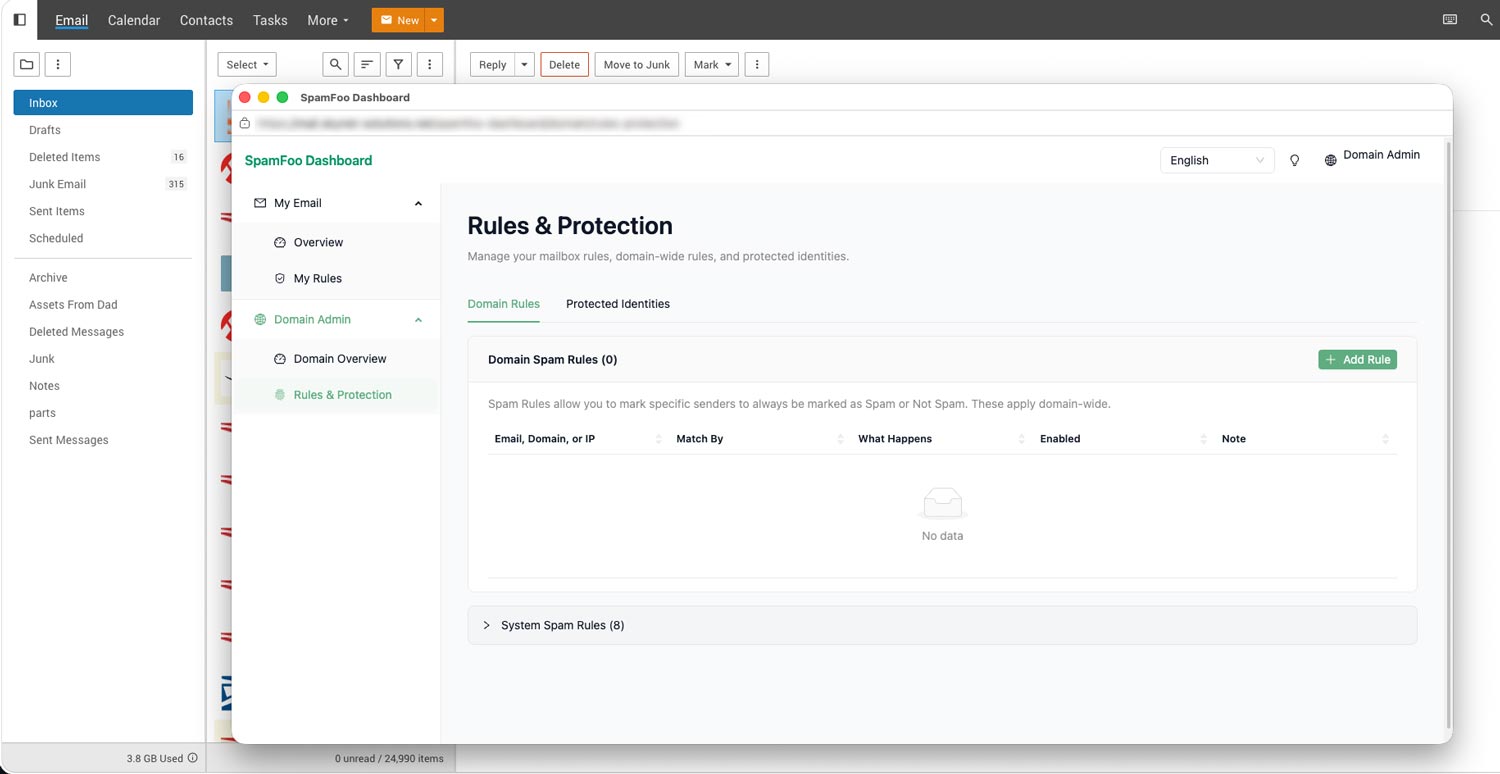
If a new rule is needed:
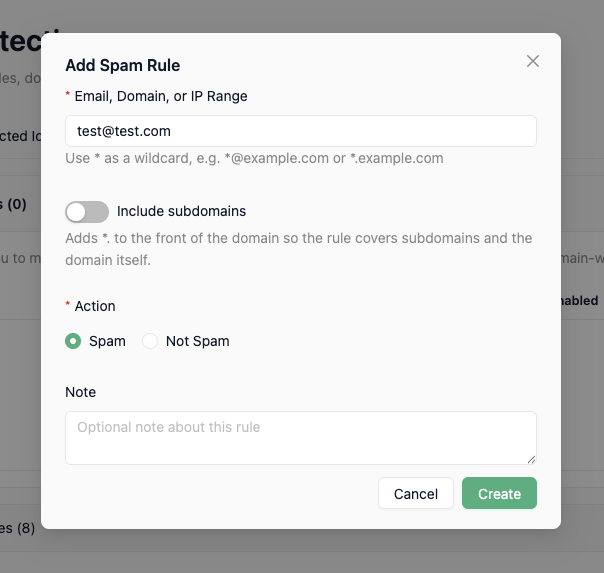
SpamFoo supports exact addresses and patterns such as *@example.com. Use Edit to manage existing rules; match counts indicate whether they have been used. Domain rule instructions.
Choose the narrowest rule that solves the problem. An entry for receipts@example.com affects less mail than one covering every sender at example.com.
Do not copy SpamFoo wildcard syntax into Trusted Senders. That list accepts addresses or plain domains, such as example.com, without wildcards. Trusted Senders entry requirements.
Within SpamFoo, server rules take priority over domain rules, and domain rules take priority over personal rules. A personal setting cannot override a conflicting domain rule. This hierarchy does not mean a SpamFoo rule bypasses every other SmarterMail delivery control. SpamFoo rule hierarchy.
If you are unsure about an existing rule’s purpose, check with the person who manages your email before changing it.
After adding, editing, or removing a rule:
A fresh message helps test future handling. Moving an existing message to Inbox only confirms that you recovered that message.
Normal spam corrections in webmail also provide feedback to SpamFoo. For help recovering legitimate messages and deciding whether to trust their senders, follow our Trusted Senders guide.
If filtering continues, contact support instead of adding increasingly broad exceptions. Review existing exceptions periodically as vendors, services, and responsibilities change.
For domain administrators managing impersonation protection.
Protected Identities is an additional SpamFoo feature. It is not a required step for resolving an ordinary Trusted Senders issue.
Consider protecting executives, payroll staff, or IT contacts whose names could be used in fraudulent messages.
Return to the domain’s Rules & Protection area and open Protected Identities.
For each identity:
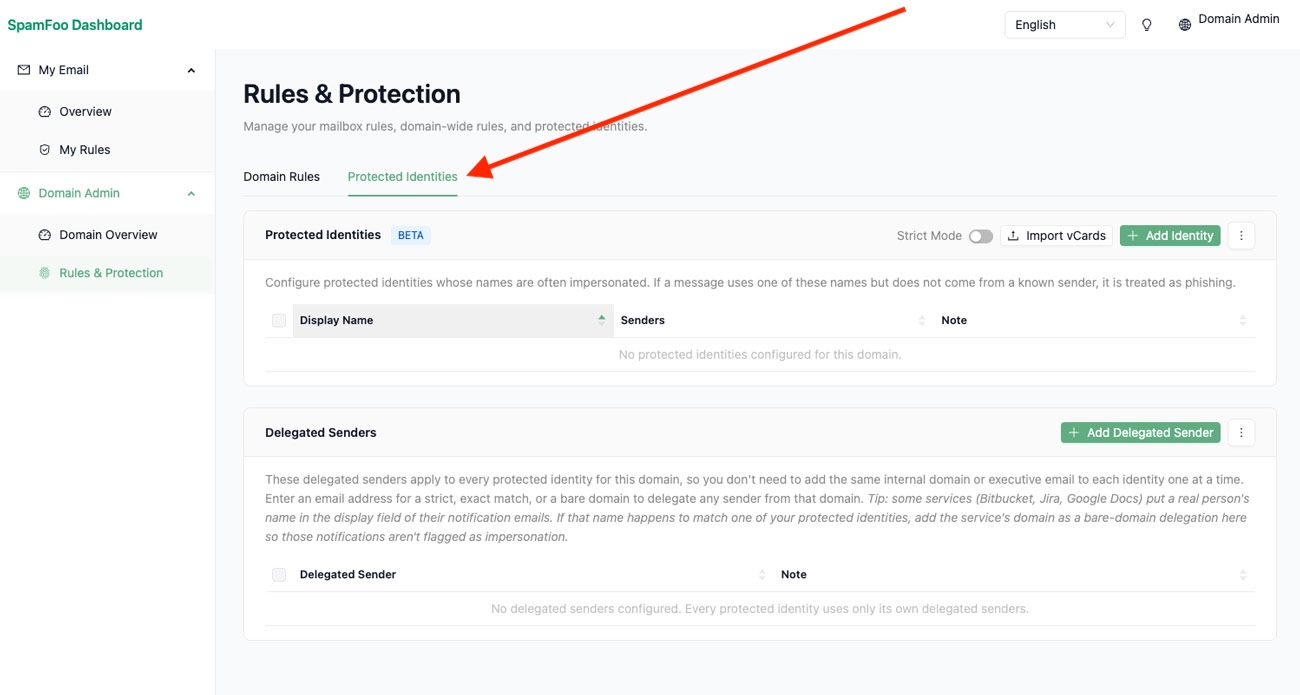
In relaxed matching mode, SpamFoo checks approved domains. Strict mode checks full email addresses.
Delegated Senders accommodates authorized outside senders acting on behalf of protected identities. These exceptions apply across the domain’s protected identities, so confirm the authorization before adding one. Protected Identities and matching modes.
Skynet Solutions email hosting customers can contact support for help with missing dashboard controls, unexpected SpamFoo behavior, or domain rules.
Provide an example of the problem, the affected sender and recipient, the approximate sending time, and any settings you changed. Keep the original message available.
If a control is missing, a screenshot of the relevant screen can help support identify what your account displays. Hide unrelated private message information.
For help adding trusted addresses or recovering legitimate messages from Junk Email, see our SmarterMail Trusted Senders guide.
Learn more about Skynet Solutions business email hosting.
If you’re expecting an important email but can’t find it in your Inbox, there’s a chance it was identified as spam and delivered to your Junk Email folder. Spam filtering

One of the many important and useful tools included with our Enterprise class Email Software by SmarterTools is collaboration via video chat with their Team Workspaces. This feature is easily

In this write up I am going to go over some of the basics with managing your email accounts with our email software SmarterMail by SmarterTools. Additional information can be