
If you’re expecting an important email but can’t find it in your Inbox, there’s a chance it was identified as spam and delivered to your Junk Email folder.
Spam filtering is an important part of protecting your email account from unwanted and potentially malicious messages. Occasionally, however, a legitimate message may be incorrectly identified as spam. Regularly reviewing the contents of your junk mail folder should be completed weekly.
Skynet Solutions uses SmarterMail Enterprise by SmarterTools for our hosted email platform. SmarterMail provides a feature called Trusted Senders that allows you to identify email addresses you trust.
If you’re familiar with the term “whitelisting,” this is essentially what you’ll be doing. In SmarterMail, the feature is referred to as Trust Sender and the addresses you trust are maintained in your Trusted Senders list.
In this guide, we’ll show you how to locate a legitimate email in your Junk Email folder, trust the sender, move the message back to your Inbox, and manage your Trusted Senders list.
Before You Trust a Sender
Before adding an email address to your Trusted Senders list, make sure you recognize the sender and are confident that the message is legitimate.
Do not trust a sender simply because the name or email address displayed on a message looks familiar. The “From” address of an email can potentially be spoofed, and phishing messages are often designed to appear as though they came from a legitimate company, coworker, customer, or service.
Be especially cautious if an unexpected message asks you to:
- Click a link to sign in or verify your account
- Open or download an unexpected attachment
- Provide a password or other sensitive information
- Send or change payment information
- Purchase gift cards or transfer money
- Take an urgent action you weren’t expecting
If you’re unsure whether a message is legitimate, contact the sender through a method you already trust before adding the address to your Trusted Senders list.
Step 1: Log In to SmarterMail Webmail
Start by signing in to your Skynet Solutions SmarterMail webmail account using your normal webmail login.
After signing in, select Email to open your mailbox.
You should see your email folders along with the messages contained in your mailbox.
Step 2: Open Your Junk Email Folder
From your list of email folders, locate and open the Junk Email folder.
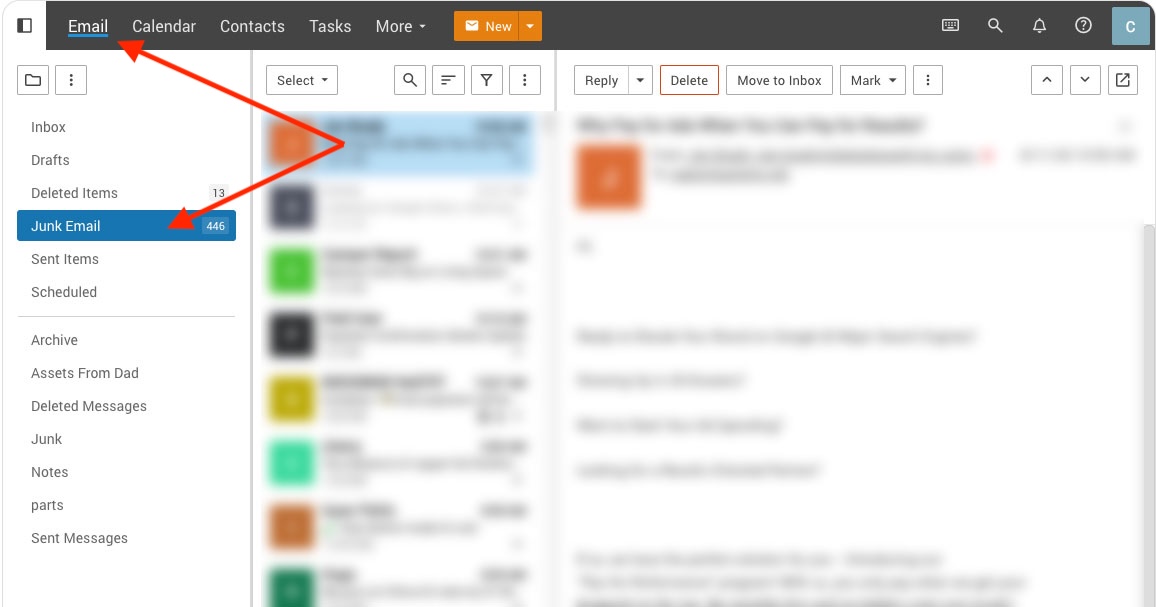
SmarterMail places messages that meet certain spam-filtering criteria into this folder based on the spam filtering policies applied to your account and domain.
Find the legitimate message that was incorrectly classified as spam.
Before continuing, take a moment to confirm:
- You recognize the sender.
- The sender’s email address is what you expected.
- The subject and content of the message make sense.
- You were expecting the message or otherwise know why it was sent.
Once you’re confident the message is legitimate, you can add its sender to your Trusted Senders list.
Step 3: Trust the Sender
With the legitimate message located in your Junk Email folder, you can tell SmarterMail that you trust email from that sender.
1. Select the Message
Click the email to open it, or select the message from the message list.
Make sure you’ve selected the correct message before continuing. The email address associated with that message is the address you’ll be telling SmarterMail to trust.
2. Locate the Message Actions
With the message selected or open, look at the available message actions in the SmarterMail toolbar.
Depending on your version of SmarterMail, browser window size, and device, some actions may be displayed directly on the toolbar while additional actions may be available from the Actions or More (…) menu.
3. Select “Trust Sender”
Locate and select Trust Sender from the available message actions.
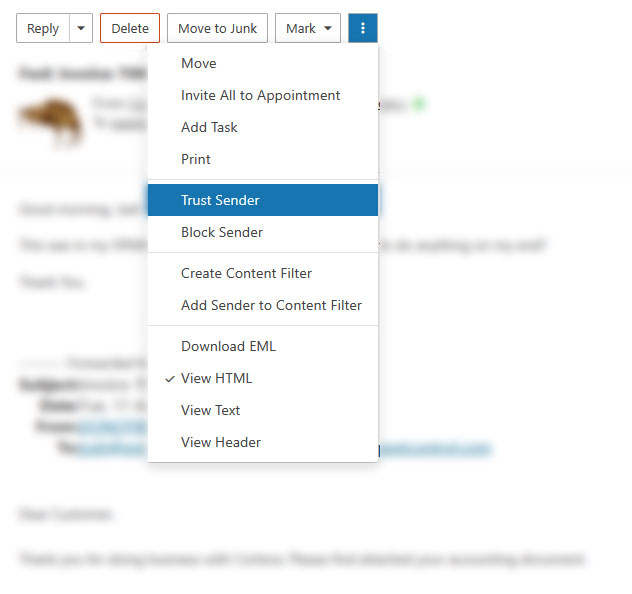
This tells SmarterMail that you consider messages from that email address legitimate.
SmarterMail will add the sender’s email address to your personal Trusted Senders list.
4. Confirm the Correct Sender
Pay attention to the email address you’re trusting rather than relying only on the sender’s display name.
For example, a message might display: ABC Company Billing
but the actual email address could be: billing@example.com
It is the email address—not simply the displayed name—that is important when deciding whether a sender should be trusted.
Step 4: Move the Existing Message to Your Inbox
Trusting the sender is intended to help SmarterMail handle future messages from that sender appropriately.
The message that was already placed in your Junk Email folder may still need to be moved manually.
Select the message and use SmarterMail’s Move option to move it to your Inbox or another appropriate mail folder.
You can then read, reply to, forward, or otherwise work with the message normally.
Step 5: Verify the Address in Your Trusted Senders List
If you’d like to make sure the email address was successfully added, you can review your Trusted Senders list from within SmarterMail.
Open Settings in the SmarterMail interface and navigate to your Spam Filtering settings. This could be under the “More” button (More > Settings > Spam Filtering).
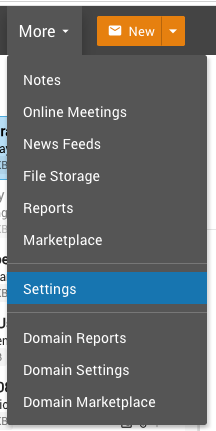
Locate the Trusted Senders section. Click the edit icon to view the sections.
The email address you trusted should now appear in this list.
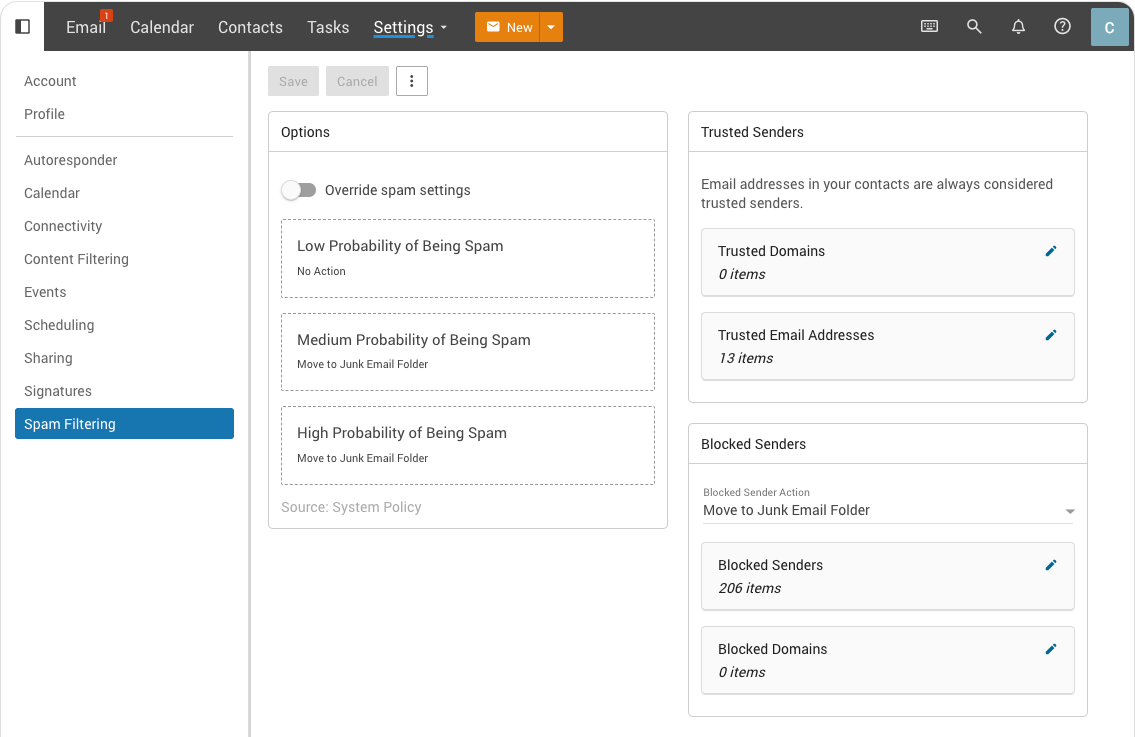
This area is also useful if you want to review addresses you’ve previously trusted or remove an address that should no longer be trusted.
Adding a Trusted Sender Manually
You don’t have to wait for a message to appear in your Junk Email folder before adding a sender to your Trusted Senders list.
If you already know an email address that should be trusted, you can add it manually.
Open your Settings, navigate to your Spam Filtering settings, and locate the Trusted Senders section.
You can enter a specific email address, such as: billing@example.com
SmarterMail also allows a domain to be added as a trusted sender, such as: example.com
When entering multiple addresses or domains, place each entry on its own line.
SmarterMail does not support wildcards in the Trusted Senders list.
Should You Trust an Email Address or an Entire Domain?
Whenever possible, we recommend trusting a specific email address rather than an entire domain.
For example, suppose you need to receive automated notifications from: notifications@example.com
Adding that specific address trusts the sender you know and expect.
Adding: example.com
is broader because it applies to email coming from addresses throughout that domain.
There are situations where trusting an entire domain makes sense. For example, your business may regularly communicate with many different employees at a trusted partner organization.
However, domain-level Trusted Sender entries should be used more selectively. For most individual users, trusting the specific email address they need is the better choice.
What Does “Trust Sender” Actually Do?
When you select Trust Sender, SmarterMail adds the email address to your personal Trusted Senders list.
Messages from addresses on this list are exempted from most spam-filtering checks that could otherwise cause legitimate messages to be classified as spam.
There is an important distinction, however:
Trusting a sender does not disable all of SmarterMail’s email security protections.
SmarterMail can continue performing email authentication checks such as SPF, DKIM, and DMARC.
These technologies help determine whether the server delivering a message is actually authorized to send email for the address or domain it claims to represent.
This provides an important layer of protection against email spoofing.
Think of the Trusted Senders feature as telling SmarterMail:
“I regularly receive legitimate email from this address.”
It does not mean: “Automatically assume every message claiming to be from this address is safe.”
That distinction allows Trusted Senders to help reduce false-positive spam filtering without unnecessarily eliminating important email authentication protections.
Removing an Address from Trusted Senders
If you accidentally trust the wrong email address—or simply no longer want an address to be treated as trusted—you can remove it.
Open Settings in SmarterMail and return to your Spam Filtering settings.
Locate the Trusted Senders section and find the email address or domain you want to remove.
Remove the entry and save your changes if prompted.
Future messages from that sender will once again be processed according to the normal spam filtering rules applied to your mailbox.
What If a Trusted Sender Still Goes to Junk Email?
Adding an address to your Trusted Senders list can resolve many false-positive spam issues, but it does not guarantee that every future message claiming to come from that address will automatically reach your Inbox.
If messages from a Trusted Sender continue appearing in Junk Email, there may be another issue affecting message delivery.
For example:
The Sender’s Email Authentication May Be Failing
The sending mail server may have an issue with its SPF, DKIM, or DMARC configuration.
These authentication methods help receiving mail servers verify that a message is legitimately associated with the domain it claims to represent.
The Sender May Be Using a Different Email Address
Businesses and online services frequently use multiple addresses for different types of email.
For example: billing@example.com
and
notifications@example.com
are two different sender addresses.
Trusting one address does not necessarily mean you’ve trusted another address from the same domain.
Check the actual sender address on the new message and compare it with the address in your Trusted Senders list.
The Message May Be Subject to Additional Mail Server Policies
Your mailbox is only one part of the email filtering process.
Depending on your organization’s email configuration, additional spam filtering or security policies may be applied at the domain or server level.
If legitimate messages continue being filtered after you’ve trusted the sender, additional investigation may be necessary.
Don’t Automatically Trust Every Message in Junk Email
The Junk Email folder exists for an important reason.
While false positives can occur, many messages placed in Junk Email are there because SmarterMail identified characteristics commonly associated with spam, spoofing, or unwanted email.
Review each message individually.
A legitimate-looking company logo, familiar sender name, or convincing email design is not enough by itself to establish that a message is safe.
If something about a message seems unusual, verify it before clicking links, opening attachments, replying, or adding the sender to your Trusted Senders list.
SmarterMail Trusted Senders and Spam Filtering Resources
SmarterTools maintains detailed documentation for SmarterMail administrators and users.
For additional information, refer to the following SmarterMail resources:
SmarterMail User Spam Filtering
SmarterTools’ Spam Filtering documentation explains user-level spam filtering settings, including Trusted Senders and Blocked Senders.
SmarterMail Domain Spam Filtering
Domain administrators can also review SmarterTools’ documentation regarding domain-level spam filtering settings and Trusted Senders.
https://help.smartertools.com/SmarterMail/Current/Topics/DomainAdmin/Settings/DomainSpamFiltering
These resources are maintained by SmarterTools and can provide additional information about the options available in your version of SmarterMail.
Need Help with SmarterMail?
Skynet Solutions provides SmarterMail Enterprise email hosting for businesses that need professional hosted email and webmail services.
If you’re a Skynet Solutions email hosting customer and legitimate messages continue to be delivered to your Junk Email folder after you’ve added the sender to your Trusted Senders list, contact Skynet Solutions Support.
Our support team can help investigate the message and determine whether the issue is related to your mailbox settings, spam filtering, the sending mail server, or the sender’s email authentication configuration.
When contacting support about a filtering issue, do not delete the affected message from your Junk Email folder. Keeping the original message available can provide useful information when troubleshooting why it was classified as spam.